Table of Content

What does a good Excel dashboard look like?
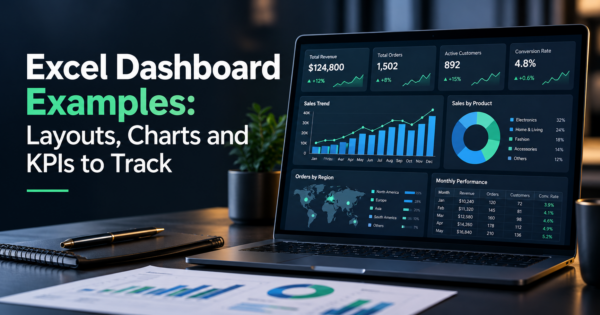
A good Excel dashboard fits on one screen, shows a few key numbers at the top, trend charts in the middle and a short detail table below, and lets the reader filter with slicers instead of scrolling through sheets. Each number has a target and a time period. The examples below cover sales, finance, marketing, HR, inventory, project and support dashboards, with the layout, charts and KPIs each should track.
- An Excel dashboard is a single sheet that summarizes data kept on other sheets, using PivotTables, charts, slicers and sparklines.
- Layout rule: key numbers across the top, trend charts in the middle, detail table at the bottom, filters on the side. One question per dashboard.
- Slicers are clickable filter buttons for tables and PivotTables, and sparklines are tiny charts inside a single cell. Both come with Excel and need no add-ins.
- Excel works well for one team and a few data sources. It struggles with automatic refresh, many users and large data, which is when a BI tool is the better choice.
- The seven examples below give the KPIs, charts and Excel features for sales, finance, marketing, HR, inventory, projects and support.
- CommercePundit builds dashboards in Excel, Power BI and custom tools. See the last section.
What is an Excel dashboard?
An Excel dashboard, sometimes called an Excel KPI dashboard, is a worksheet that pulls the numbers from your raw data into one view so you can read the state of the business at a glance. The data lives on separate sheets or in connected files. The dashboard sheet holds only summary tables, charts and filters. Done well, it replaces a monthly report that someone rebuilds by hand.
What layout works for an Excel dashboard?
| Zone | What goes there | Excel feature |
|---|---|---|
| Top row | Four to six headline numbers with targets and change versus the last period | Cells linked to PivotTables or formulas, with conditional formatting |
| Middle | Trend charts and one comparison chart | Line or column charts, PivotCharts |
| Side or top strip | Filters for date, region, product or owner | Slicers on PivotTables and tables |
| Bottom | A short table of exceptions or the top and bottom performers | PivotTable or table with sorting |
| Inside tables | Small trends next to each row | Sparklines |
Slicers are buttons that filter tables or PivotTables and show the current filter state, so the reader sees what is displayed. You add one from the Insert tab. In Excel for the web you can create slicers only for PivotTables, and for tables you need Excel for Windows or Mac (Microsoft: use slicers). Sparklines are tiny charts inside a single cell, in three types: line, column and win/loss (Microsoft: sparklines).
What are good Excel dashboard examples?
Sales dashboard in Excel
KPIs: revenue against target, pipeline value, win rate, average deal size, sales cycle length. Charts: a column chart of revenue by month against target, a funnel built from a bar chart of stages, and a ranked bar of reps. Excel features: a PivotTable by rep and month with slicers for region and product. See our sales dashboard examples for the full metric set.
Finance dashboard in Excel
KPIs: cash balance, revenue, gross margin, operating expenses, receivables overdue, budget against actual. Charts: a line chart of cash over time, a stacked column of expenses by category, and a variance bar. Excel features: conditional formatting to flag lines over budget. Our financial dashboard examples go deeper on the numbers owners should watch.
Marketing dashboard in Excel
KPIs: visits, leads, cost per lead, conversion rate, revenue by channel. Charts: a line chart of leads by week, a bar chart of cost per lead by channel. Excel features: a table of exported campaign data with a slicer for channel. For web traffic data, our Google Analytics dashboard examples show what to pull from GA4.
HR dashboard in Excel
KPIs: headcount, hires, exits, turnover rate, open roles, time to fill. Charts: a stacked column of headcount by department, a line chart of turnover by month. Excel features: a PivotTable by department with a slicer for location. Keep personal data out of shared files.
Inventory dashboard in Excel
KPIs: stock on hand, days of stock, stockouts, slow-moving items, reorder points. Charts: a bar chart of days of stock by product, a table of items below reorder level. Excel features: conditional formatting to turn low-stock rows red, and sparklines to show demand by week.
Project dashboard in Excel
KPIs: tasks done against plan, overdue tasks, budget spent, milestone dates, risks open. Charts: a bar chart of progress by workstream and a simple timeline. Excel features: a table with a status column, a slicer for owner, and conditional formatting for overdue dates.
Customer support dashboard in Excel
KPIs: tickets opened and closed, first response time, resolution time, backlog, satisfaction score. Charts: a line chart of backlog by day and a column chart of tickets by category. Excel features: a PivotTable from a help desk export, refreshed each week.
For a leadership view that combines these, see our executive dashboard examples and operations dashboard examples.
How do you build a dashboard in Excel?
- Decide the question. One audience, one decision, such as “are we on track for the quarter?”
- Put the data in a table. One row per record, one header row, no merged cells.
- Build PivotTables for each summary you need on a separate calculation sheet.
- Add charts linked to those PivotTables, and keep one message per chart.
- Add slicers for the filters people ask for most, and connect them to every PivotTable that should respond.
- Add sparklines and conditional formatting to show trends and exceptions.
- Lock the layout, hide the calculation sheet if needed, and document how to refresh.
How do you make an Excel dashboard look professional?
- Use two or three colors, and reserve red and green for status.
- Align charts and cards to a grid, and leave white space.
- Label every chart with a clear title and the time period.
- Remove gridlines, borders and chart junk you do not need.
- Show a target or comparison next to every headline number.
- Use consistent number formats, such as thousands separators and one currency.
Should you use an Excel dashboard template?
Excel dashboard templates save layout work, and you can find free Excel dashboard examples and templates from Microsoft and many software vendors. Check three things before you use one: where your data will plug in, whether it relies on macros you do not trust, and whether the KPIs match your business. A template with the wrong metrics looks good and misleads. Treat it as a layout, then replace the numbers with your own.
When should you move from Excel to a BI tool?
Move when the dashboard needs data that refreshes on its own, many people need to see it at once, or the file is slow because of the amount of data. Microsoft’s own BI product is Power BI; see our Power BI dashboard examples. Looker Studio is a free option for web analytics data. If you want a team to design and automate it, see our business intelligence dashboard services, AI integration services and AI automation.
Frequently Asked Questions
What are good Excel dashboard examples?
Common examples are sales, finance, marketing, HR, inventory, project and customer support dashboards. Each pairs a few KPIs with trend charts, slicers and a short detail table.
How do I create a dashboard in Excel?
Put your data in a table, build PivotTables for each summary, add charts linked to them, add slicers for filters, and arrange everything on one sheet with the key numbers at the top.
How do I make an Excel dashboard look professional?
Use a consistent grid, two or three colors, clear chart titles, targets beside headline numbers, and remove gridlines and clutter. Reserve red and green for status.
Where can I download free Excel dashboard examples?
Excel and many software vendors offer free templates. Check where your data will connect, avoid files with macros you do not trust, and replace the sample KPIs with your own.
What are the four types of dashboards?
A common classification is strategic, operational, analytical and tactical dashboards. Strategic dashboards track long-term goals, operational dashboards track day-to-day work, analytical dashboards explore data, and tactical dashboards support managers.
What are slicers in Excel?
Slicers are clickable filter buttons for tables and PivotTables. They show the current filter state so readers can see what the dashboard displays.
What are sparklines in Excel?
Sparklines are tiny charts inside a single cell, available as line, column and win/loss types, that show a trend next to a row of data.
Does Microsoft have a dashboard tool?
Yes. Power BI is Microsoft’s business intelligence product for dashboards. Excel can also build dashboards with PivotTables, charts, slicers and sparklines.
What is the best free dashboard software?
It depends on the data. Excel is a good start for spreadsheets, and Looker Studio connects to Google Analytics 4 for free. Move to a BI tool when you need automatic refresh and many users.
Bottom Line
The best Excel dashboards answer one question on one screen: key numbers on top, trends in the middle, exceptions at the bottom, and slicers for the filters people ask for. Build them from clean tables and PivotTables, show a target next to every number, and move to a BI tool when refresh and sharing become the bottleneck. To get a dashboard built and automated, talk to us about business intelligence dashboard services.